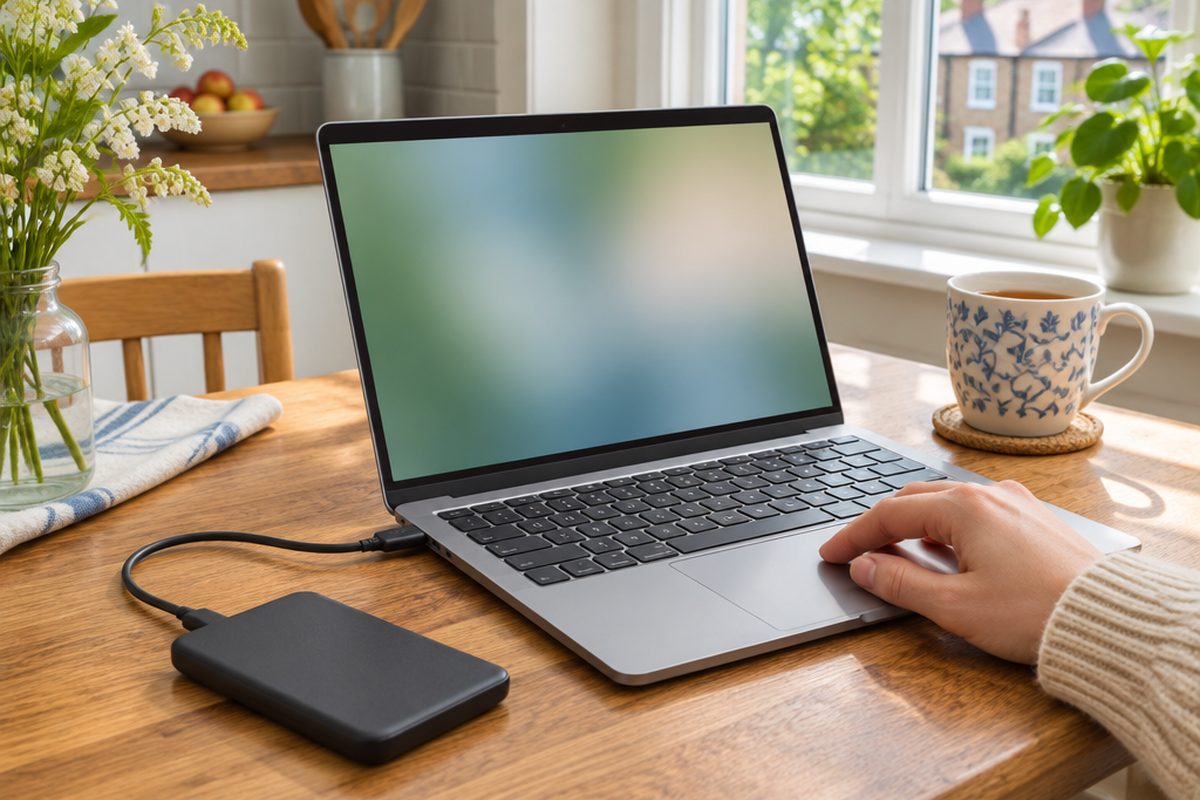
Laptops get dropped, stolen and soaked in tea, and the drive inside can fail with no warning. An external drive and the backup tool already built into your computer will protect years of documents and photos for the price of a meal out. It takes half an hour to set up, and after that it looks after itself.
As an Amazon Associate I earn from qualifying purchases. The buttons below go to Amazon, and I may earn a commission if you buy, at no extra cost to you.
The kit you need
Portable external hard drive
Buy at least twice the size of your computer's storage. A portable hard drive is the cheapest way to get a lot of space and needs no power supply.
Our pick: Seagate 2TB Portable Hard Drive
Portable SSDoptional
Costs more for the same space, but is faster, smaller and survives being dropped. A good choice for a laptop that travels.
Our pick: SanDisk Extreme Portable SSD 1TB
USB-C to USB-A adapter or cableoptional
Many newer laptops only have USB-C ports. Check which plug the drive comes with before you buy.
Our pick: Anker USB-C to USB 3.0 Adapter
Fireproof document pouchoptional
Somewhere sensible to keep the drive between backups, away from the laptop it protects.
Our pick: Fireproof Document Bag
Step by step
Check how much you need to back up
On a Mac, open System Settings > General > Storage. On Windows, open Settings > System > Storage. Note how much space is used, and buy a drive at least twice that size so there is room for older versions of your files.
Plug the drive in
Connect it to the computer. A Mac will often ask straight away whether you want to use it for Time Machine. If it does, say yes and skip to step 4.
Turn on the built-in backup
Mac: open System Settings > General > Time Machine, choose Add Backup Disk and select the drive. Tick the option to encrypt the backup and set a password you will remember.
Windows: search the Start menu for File History, open it, choose the external drive and turn it on. It backs up your Documents, Pictures, Desktop and similar folders.
Let the first backup finish
The first run copies everything and can take several hours. You can keep using the computer. Later backups only copy what has changed and are much quicker.
Prove you can get a file back
A backup you have never tested is a hope, not a backup. Find a file, open the backup tool and restore an older copy of it to your Desktop. Once you have seen it work, you know what to do on the day you need it.
Make it a habit
Backups only run while the drive is connected. Plug it in once a week, or leave it connected at your desk. Keep it somewhere other than your laptop bag, so one theft does not take both.
Handy extras
Not essential, but people often pick these up at the same time.
- Larger external hard drive
- Rugged portable SSD
- Hard case for a portable drive
- USB-C hub with extra ports
- USB flash drive for key files
Common questions
Is this enough on its own?
It protects you from the most common disasters: a dead drive, a lost laptop, a file deleted by mistake. It does not protect you if the laptop and the drive are lost in the same fire or burglary, so keep important photos in a cloud service or on a second drive elsewhere as well.
Can I use the same drive for a Mac and a Windows PC?
Not for both backup systems at once. Time Machine and File History format the drive differently. Use one drive per computer.
Hard drive or SSD?
For a drive that mostly sits on a desk, a hard drive gives far more space for the money. For one that lives in a bag, an SSD is tougher.
More guides
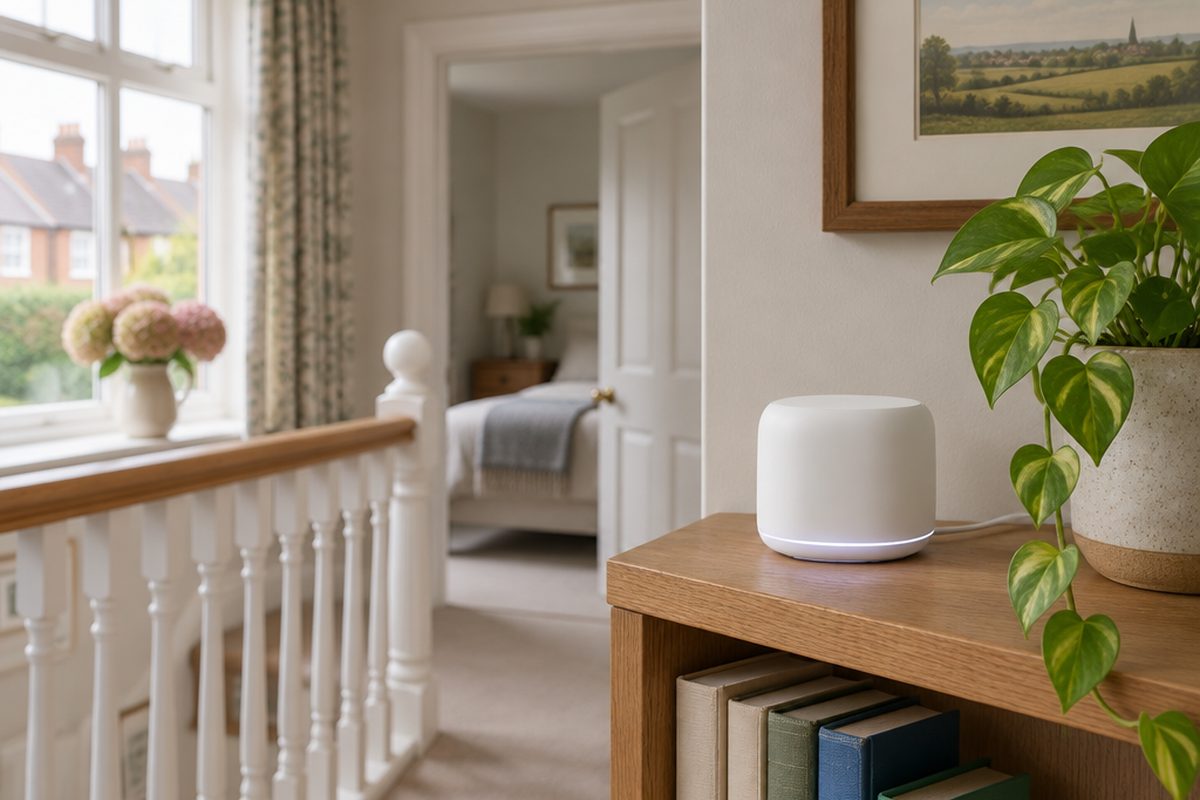 How to set up mesh Wi-Fi to fix dead spots in your home45 minutesFix weak Wi-Fi upstairs or in the back room with a mesh system. What to buy, where to put each unit and how to set it up with your existing router.
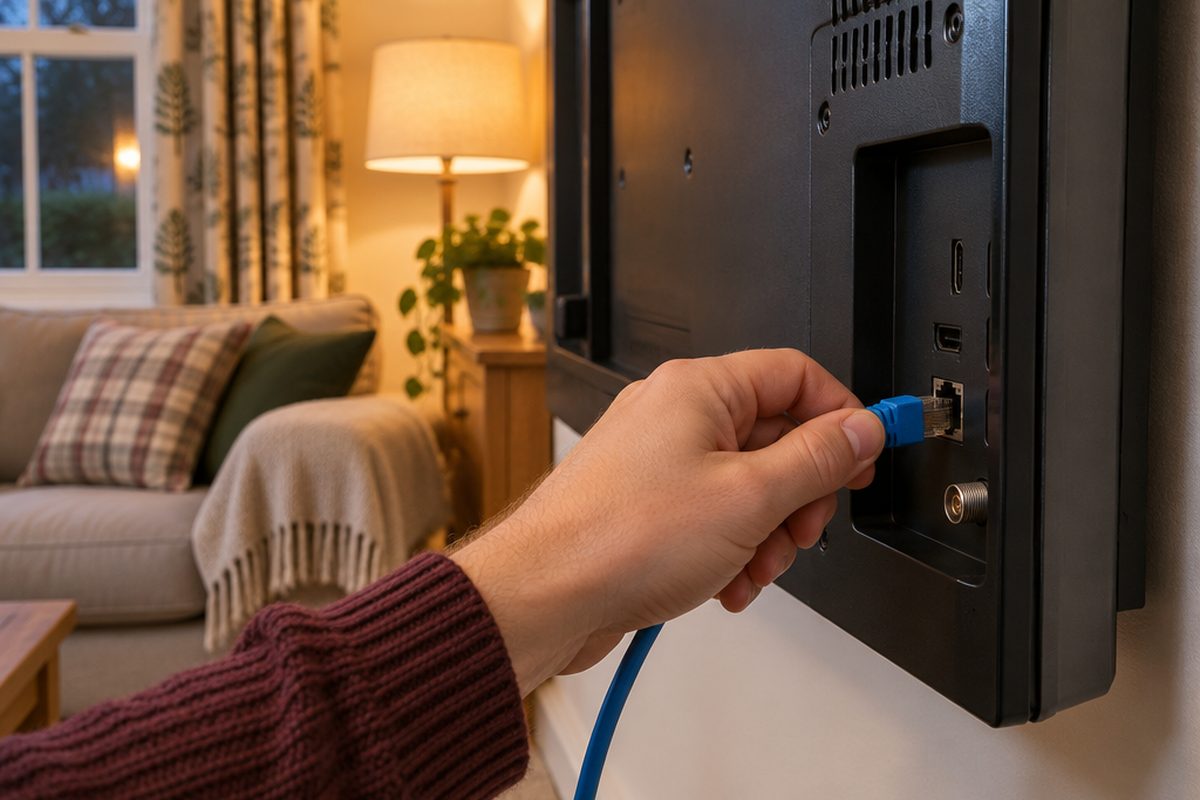 How to stop your TV buffering when you stream30 minutesFix a smart TV or streaming stick that keeps buffering. Work out whether the problem is the Wi-Fi or the TV, then fix it with a cable or a better stick.
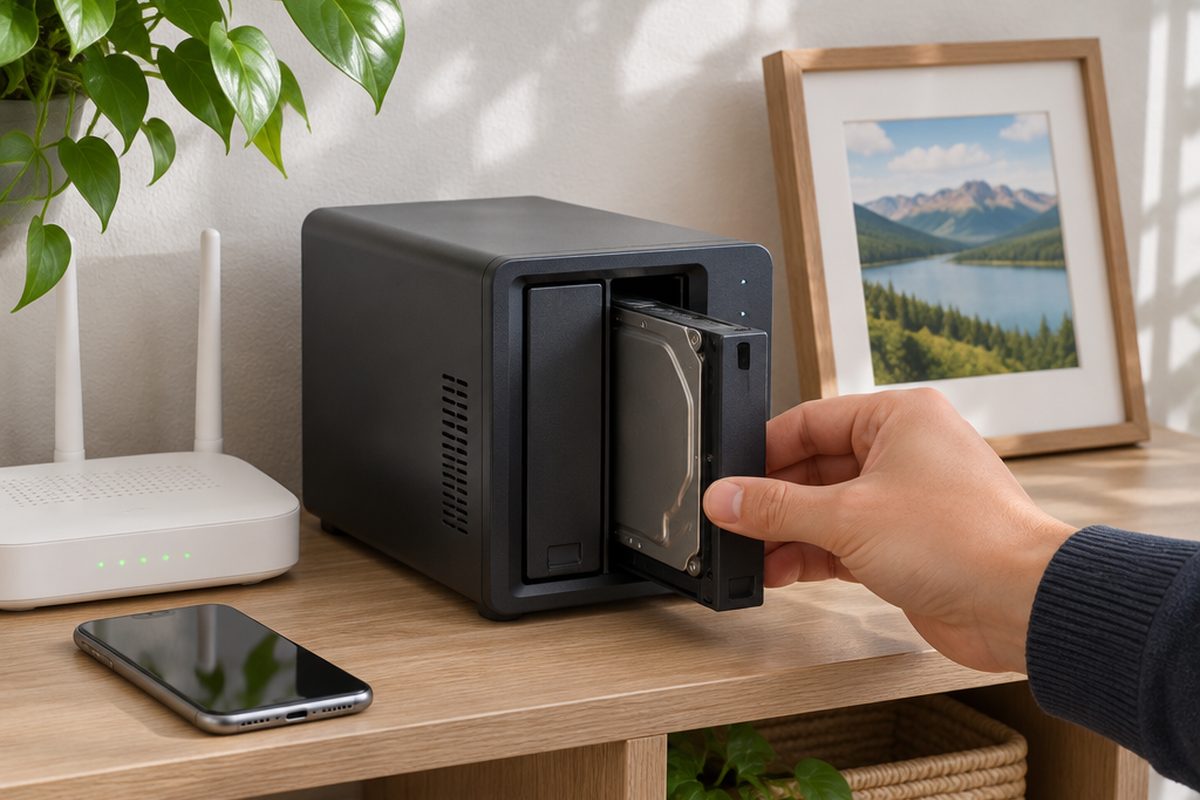 How to set up a home NAS to back up your photos automatically2 hoursSet up a two-drive NAS that backs up your phone photos and computer on its own, with a simple plan for an offsite copy.