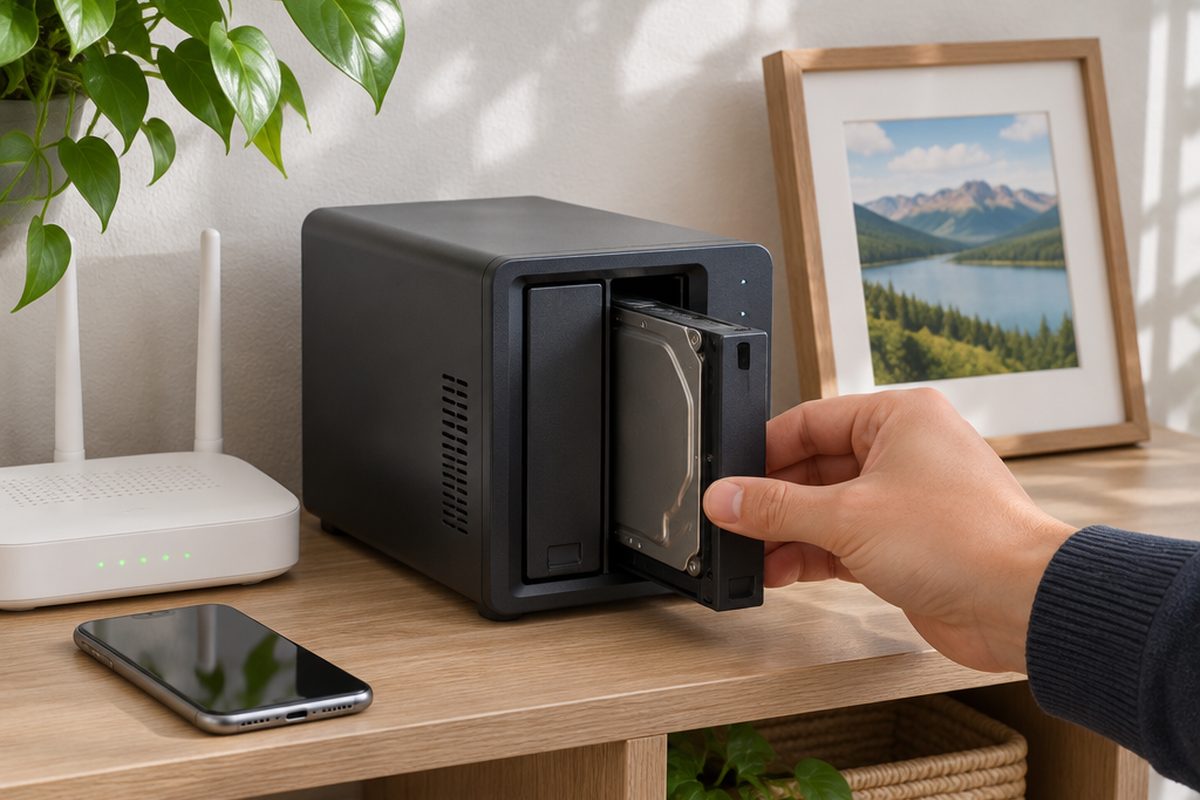
Phones fill up, laptops die and cloud storage charges you every month, forever. A NAS (network attached storage) is a small box of hard drives on your home network that backs up your photos and files automatically. Setting one up properly is a one-off afternoon job, and the only thing worth planning carefully is the kit you buy.
As an Amazon Associate I earn from qualifying purchases. The buttons below go to Amazon, and I may earn a commission if you buy, at no extra cost to you.
The kit you need
2-bay NAS enclosure
The box that holds the drives and runs the software. Two bays lets you mirror your data across two drives, so one failure does not lose anything.
Our pick: Synology DS224+ 2 Bay NAS
Two NAS-rated hard drives
Buy two identical drives sold for NAS use. Check the product details say CMR rather than SMR, because some cheaper drive types are slow and poor for this job.
Our pick: Seagate IronWolf 4TB NAS Drive
Ethernet cable
Connect the NAS to your router by cable. Backups of thousands of photos are far faster and more reliable than over Wi-Fi.
Our pick: UGREEN Ethernet Cable 1m
External USB hard drive for a spare copyoptional
Your offsite or second backup. Keep it somewhere other than next to the NAS.
Our pick: Seagate 4TB Portable Hard Drive
Small UPS battery backupoptional
Protects the drives from sudden power cuts. Not essential, but cheap peace of mind.
Our pick: APC Back-UPS
Step by step
Understand what a NAS is and is not
A mirrored NAS protects you if one drive dies. It does not protect you from fire, theft, a flood or deleting something by accident, because the mistake gets copied to both drives. The rule to follow is 3-2-1: three copies of anything important, on two kinds of storage, with one copy stored somewhere else. The NAS is your second copy, and step 7 covers the third.
Install the drives
Open the NAS following its manual, slide in both drives and close it up. Connect the NAS to your router with the Ethernet cable and plug in the power. Switch it on and wait a few minutes for it to start.
Run the setup
Every NAS brand has a setup page or app that finds it on your network. Follow it, create an admin account with a strong, unique password, and let it install the operating system. Turn on automatic updates when it offers.
Create a mirrored storage pool
When it asks how to use the two drives, choose the option that mirrors them. It may be called RAID 1 or a similar brand-specific name. Mirroring means the same data is written to both drives, so you keep half the total space but survive one failure.
Back up your phone photos
Install the NAS maker's photo app on your phone, sign in to your NAS and switch on automatic upload. Set it to upload on home Wi-Fi only, so it does not use your mobile data. The first run will take a while if you have years of photos.
Back up your computers
On a Mac, add the NAS as a Time Machine destination in System Settings. On Windows, use File History or the backup app the NAS maker provides. Both run quietly in the background once set.
Add a copy somewhere else
Plug the external drive into the NAS and set it to copy your photo folder on a schedule, then keep that drive at a relative's house or at work and swap it every few months. If you would rather not carry a drive around, use the NAS's encrypted cloud backup option instead.
Handy extras
Not essential, but people often pick these up at the same time.
- 4-bay NAS for more space
- Larger NAS hard drive
- Hard drive docking station
- Surge protected extension lead
- Short Ethernet patch cables
Common questions
Is a NAS better than cloud storage?
They do different jobs. A NAS has no monthly fee and keeps everything under your control, while cloud storage protects you from a disaster at home. The best setup uses both: the NAS for everyday backups and a cloud or offsite copy for emergencies.
How much space do I need?
Add up your photos, videos and files, then double it for growth. For many households, two 4TB drives mirrored gives 4TB of usable space and lasts years.
Can I use two different drives?
You can, but identical drives are simpler and easier to replace. If one fails, buy the same model again.
More guides
 How to set up mesh Wi-Fi to fix dead spots in your home45 minutesFix weak Wi-Fi upstairs or in the back room with a mesh system. What to buy, where to put each unit and how to set it up with your existing router.
 How to stop your TV buffering when you stream30 minutesFix a smart TV or streaming stick that keeps buffering. Work out whether the problem is the Wi-Fi or the TV, then fix it with a cable or a better stick.
 How to back up your computer to an external drive30 minutesSet up automatic backups on a Mac or Windows PC with one external drive. What size to buy, how to switch it on and how to check you can get files back.