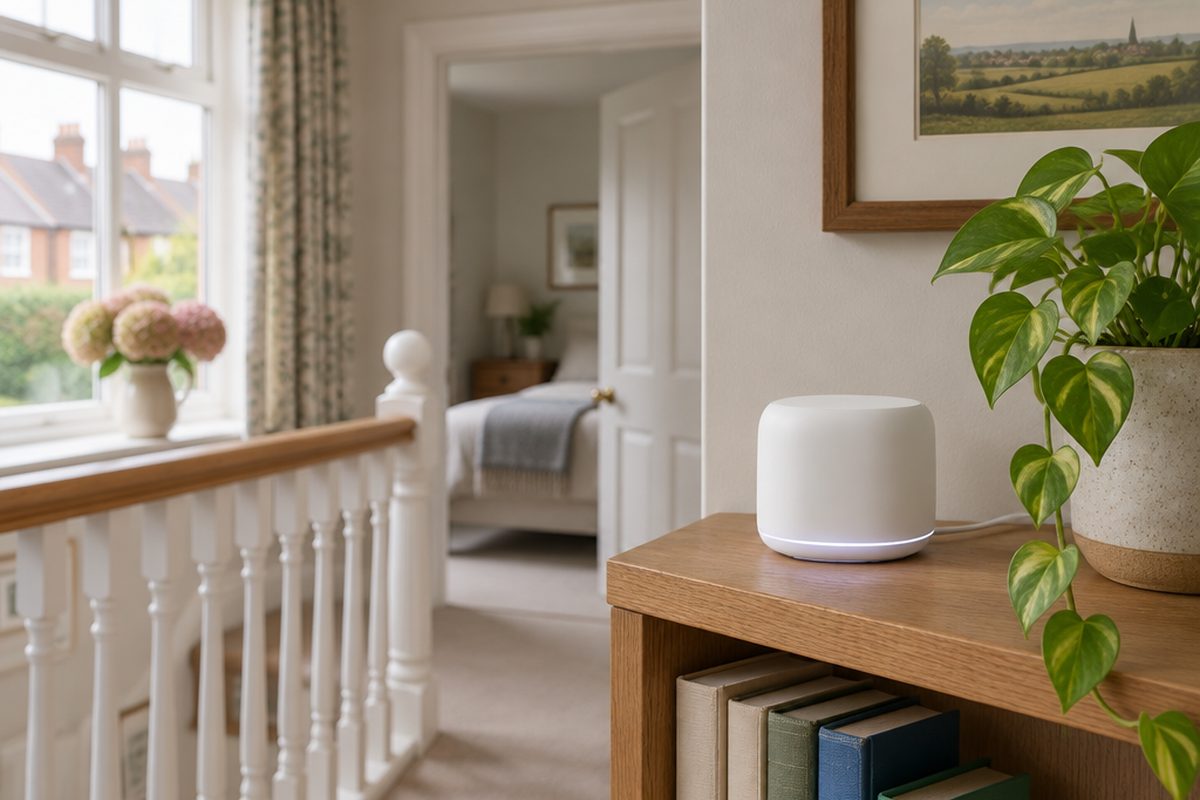
If your Wi-Fi is fine next to the router and hopeless in the bedroom or the garden office, the router is not broken. One box in a corner of the house simply cannot reach everywhere, especially through brick walls. A mesh system replaces that single signal with two or three units that work together as one network, and it is one of the easiest upgrades you can make yourself.
As an Amazon Associate I earn from qualifying purchases. The buttons below go to Amazon, and I may earn a commission if you buy, at no extra cost to you.
The kit you need
Mesh Wi-Fi system, 2 or 3 pack
Two units suit most flats and smaller houses. Choose three for a larger house, thick walls or more than two floors. Look for Wi-Fi 6 or newer.
Our pick: TP-Link Deco X55 (3-pack)
Ethernet cableoptional
Connects the first mesh unit to your existing router. Most kits include one short cable, so only buy this if you need a longer run.
Our pick: Cat6 Ethernet Cable 2m
Flat Ethernet cable, 10m or longeroptional
If you can run a cable between units, the mesh gets much faster. A flat cable tucks under carpet edges and around door frames.
Small network switchoptional
Gives you extra wired ports next to a mesh unit for a TV, console or desktop PC.
Our pick: TP-Link TL-SG105S 5-Port Switch
Step by step
Check where the signal actually drops
Walk around your home with your phone and note where pages slow down or video calls stutter. Those are the rooms the mesh needs to cover. This tells you whether you need two units or three before you spend anything.
Connect the first unit to your router
Plug the first mesh unit into a spare port on your existing router with the Ethernet cable, then plug in its power. Your internet provider's router stays where it is and carries on doing its job. The mesh takes over the Wi-Fi.
Set it up in the app
Install the mesh maker's app on your phone and follow the setup. Choose a new network name and a strong password. If you reuse your old network name and password exactly, most of your devices will reconnect on their own without you retyping anything.
Place the other units halfway, not in the dead spot
This is the step most people get wrong. A mesh unit needs a good signal itself before it can pass one on. Put each extra unit roughly halfway between the first unit and the room with poor signal, out in the open and off the floor. Not inside a cupboard, and not behind the TV.
Turn off the old Wi-Fi
Log in to your original router and switch off its Wi-Fi, so your devices do not cling to the old weak signal. If the mesh app mentions access point mode or bridge mode, turning that on avoids a problem called double NAT, which can upset games consoles and some smart home devices.
Test the rooms that used to struggle
Go back to the dead spots and run a speed test or start a video call. If one room is still weak, move the nearest unit a little closer to the first one and test again. Small moves make a big difference.
Handy extras
Not essential, but people often pick these up at the same time.
- Wi-Fi 7 mesh system
- Outdoor mesh unit for the garden
- Wall mount for a mesh unit
- Cable clips for a tidy run
- USB Wi-Fi 6 adapter for an old PC
Common questions
Is mesh better than a cheap Wi-Fi extender?
Usually, yes. A basic extender creates a second network and often halves your speed. A mesh system is one network that hands your devices from unit to unit as you move around.
Do I need to replace my internet provider's router?
No. The mesh plugs into it. You keep the provider's router for the internet connection and let the mesh handle Wi-Fi.
Will mesh make my internet faster?
It will not raise the speed you pay for, but it lets far more of that speed reach the rooms that were struggling.
More guides
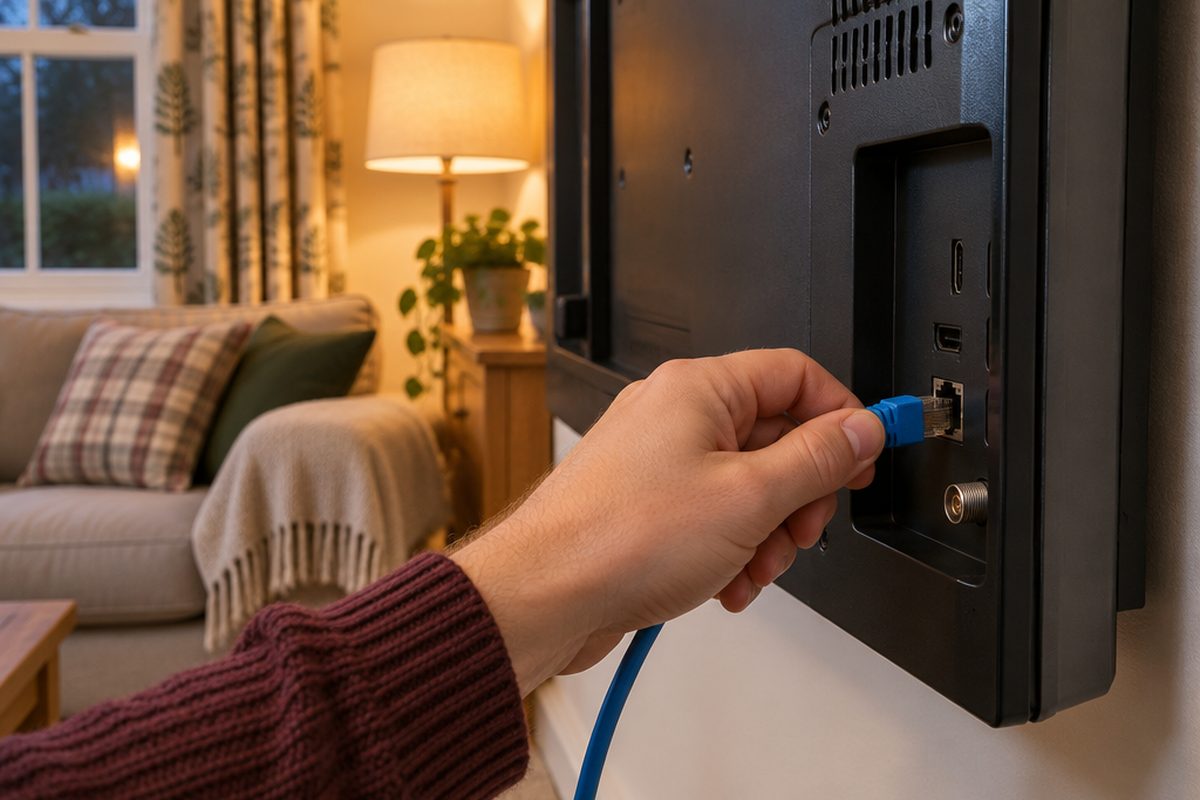 How to stop your TV buffering when you stream30 minutesFix a smart TV or streaming stick that keeps buffering. Work out whether the problem is the Wi-Fi or the TV, then fix it with a cable or a better stick.
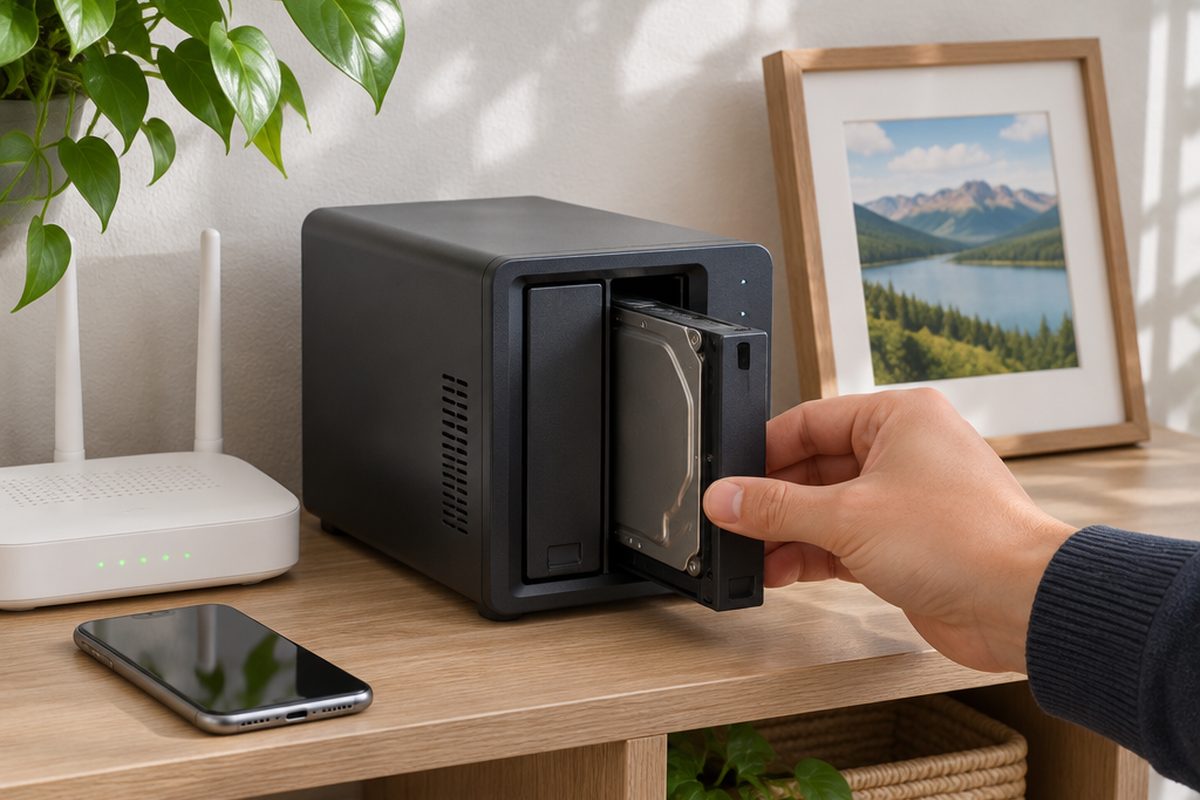 How to set up a home NAS to back up your photos automatically2 hoursSet up a two-drive NAS that backs up your phone photos and computer on its own, with a simple plan for an offsite copy.
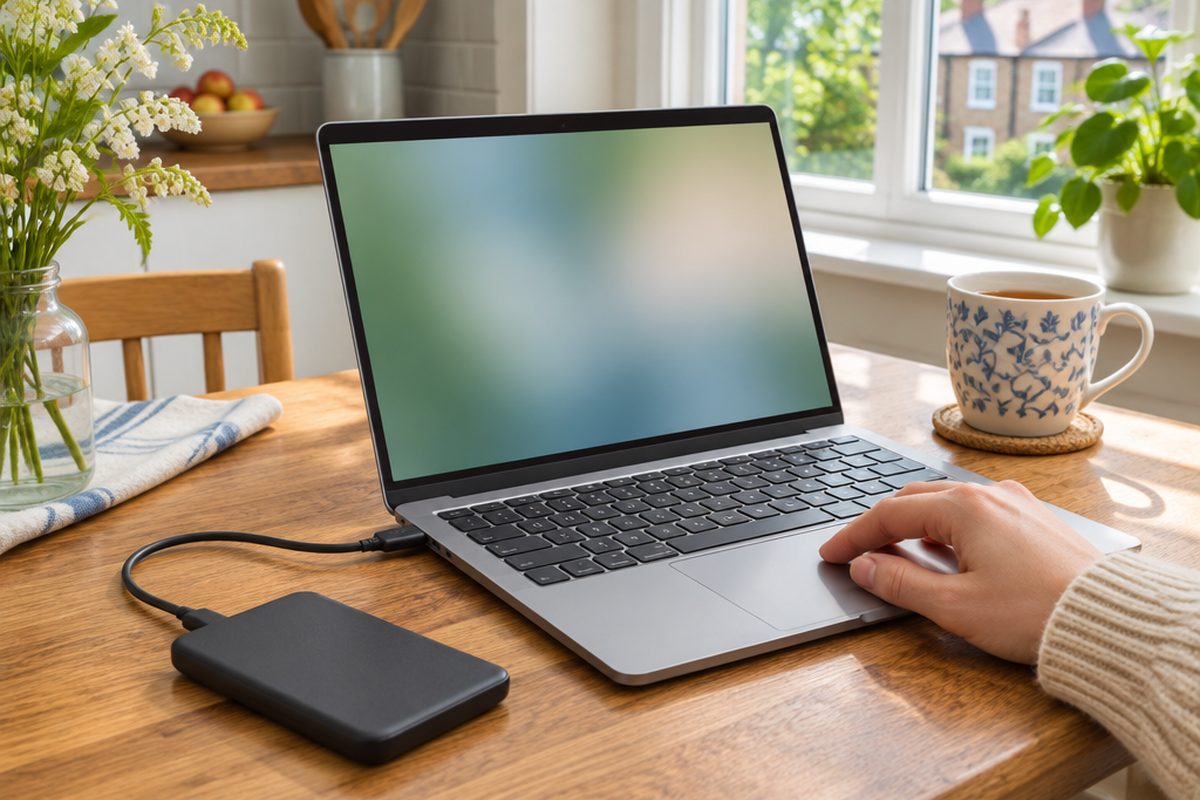 How to back up your computer to an external drive30 minutesSet up automatic backups on a Mac or Windows PC with one external drive. What size to buy, how to switch it on and how to check you can get files back.