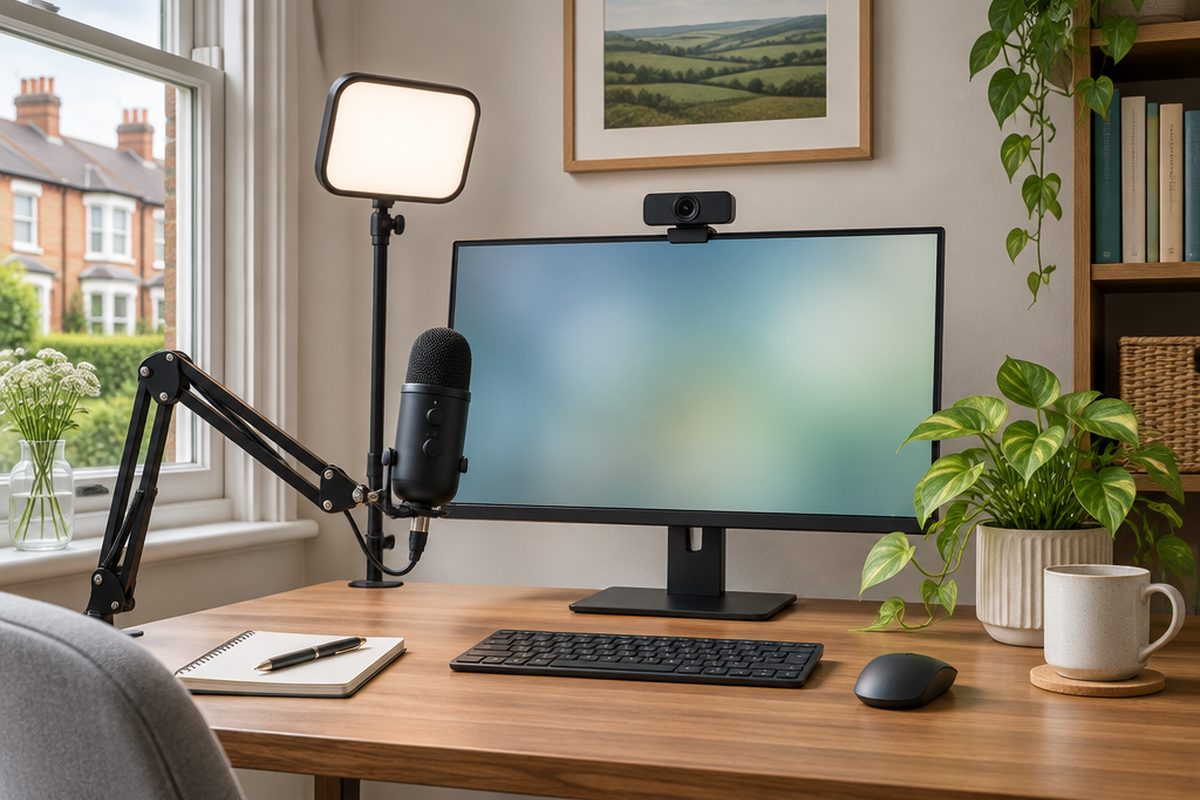
Most laptop webcams and microphones are an afterthought, which is why so many people look grainy and sound like they are in a bathroom. You do not need a studio to fix it. Sound matters most, light comes second and the camera comes third, so spend your money in that order.
As an Amazon Associate I earn from qualifying purchases. The buttons below go to Amazon, and I may earn a commission if you buy, at no extra cost to you.
The kit you need
USB microphone
The single biggest upgrade. A plug-in USB microphone close to your mouth sounds far better than any laptop mic.
Our pick: Plug and play USB PC Microphone
Desk boom arm for the microphoneoptional
Holds the microphone near your mouth and off the desk, so it does not pick up typing and knocks.
Our pick: Aokeo AK-35 Microphone Boom Arm
LED key light or ring light
Even light on your face makes a cheap camera look good. Choose one with adjustable brightness and warmth.
Our pick: Logitech Litra Glow
1080p webcam
Sharper than a typical laptop camera and, more importantly, you can put it at eye level.
Our pick: Logitech C920S HD Pro Webcam
Laptop standoptional
If you keep using the laptop camera, a stand raises it to eye level so people are not looking up your nose.
Our pick: Babacom Laptop Stand
Step by step
Fix the sound first
Plug in the USB microphone and place it a hand's width from your mouth, slightly to one side. In your call app's audio settings, choose it as the microphone. Wear headphones or earbuds if you can, because they stop your voice echoing back through the speakers.
Put the light in front of you
Face a window if you have one, with the light falling on your face. Never sit with a window behind you, or you become a silhouette. Add the LED light just behind and above your screen, angled down slightly, and turn it down until your face looks natural rather than washed out.
Raise the camera to eye level
Clip the webcam to the top of your monitor, or raise your laptop on the stand, so the lens is level with your eyes. Sit about an arm's length away so your head and shoulders fill the frame.
Tidy what the camera sees
Look at the preview before a call. A plain wall, a bookshelf or a plant works well. If the room is busy, use the app's background blur rather than a fake background, which tends to cut bits off your head.
Choose the right devices in each app
Zoom, Teams and Google Meet each remember their own microphone, speaker and camera choices. Open the settings in every app you use and select your new microphone and webcam, then use the built-in test call or preview to check.
Handy extras
Not essential, but people often pick these up at the same time.
- Headset with a boom microphone
- Pop filter for the microphone
- Webcam privacy cover
- Plain backdrop for behind you
- Monitor light bar
Common questions
What should I buy if I can only afford one thing?
The microphone. People forgive a soft picture, but they tire quickly of audio they have to strain to hear.
Do I need a 4K webcam?
No. Most video call apps compress the picture to 1080p or lower anyway. Good light makes more difference than extra pixels.
Is a headset better than a desk microphone?
A decent headset with a boom microphone sounds very good and costs less. A desk microphone is more comfortable for long days and looks tidier on camera.
More guides
 How to set up mesh Wi-Fi to fix dead spots in your home45 minutesFix weak Wi-Fi upstairs or in the back room with a mesh system. What to buy, where to put each unit and how to set it up with your existing router.
 How to stop your TV buffering when you stream30 minutesFix a smart TV or streaming stick that keeps buffering. Work out whether the problem is the Wi-Fi or the TV, then fix it with a cable or a better stick.
 How to set up a home NAS to back up your photos automatically2 hoursSet up a two-drive NAS that backs up your phone photos and computer on its own, with a simple plan for an offsite copy.