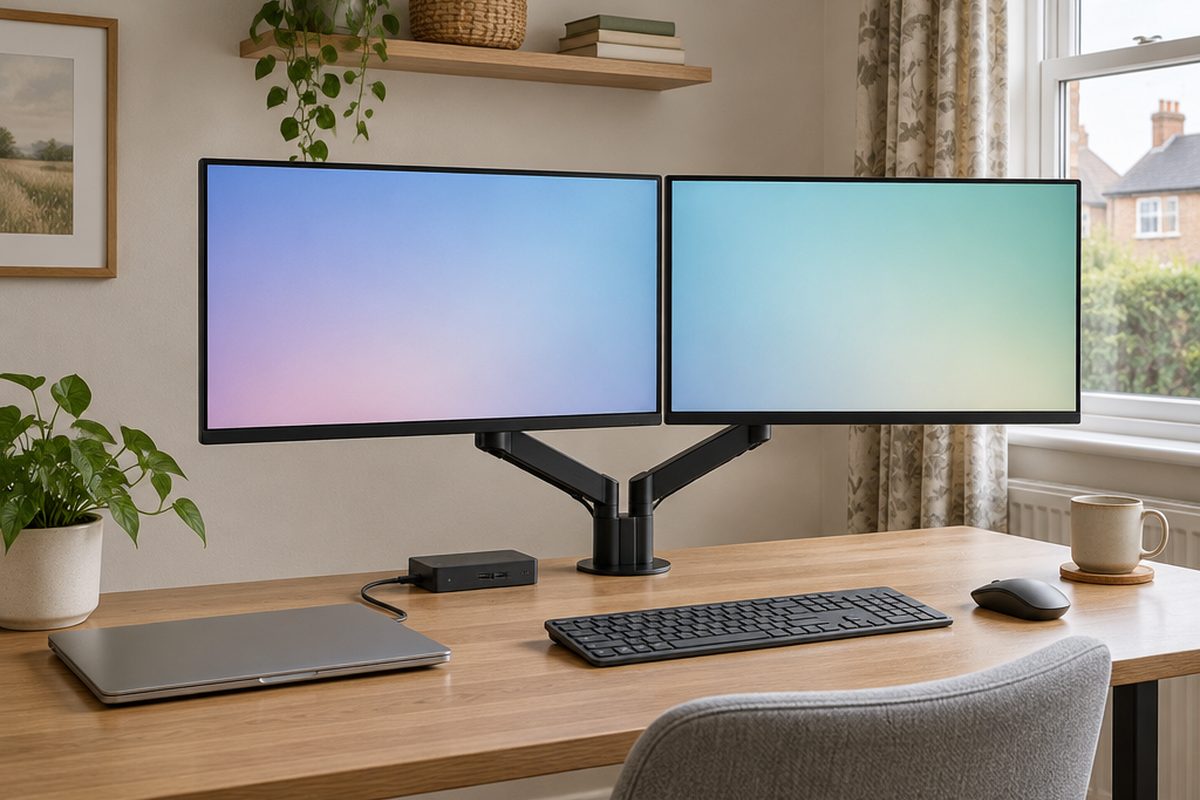
Working all day on a laptop screen is hard on your neck and your patience. Two monitors and a docking station turn the same laptop into a full desk setup that you connect with a single cable. The one thing to get right before buying is checking what your laptop can actually drive, because not every laptop supports two external screens.
As an Amazon Associate I earn from qualifying purchases. The buttons below go to Amazon, and I may earn a commission if you buy, at no extra cost to you.
The kit you need
USB-C or Thunderbolt docking station
One cable to the laptop carries both screens, power, keyboard and mouse. Check it lists two display outputs and enough charging wattage for your laptop.
Our pick: Anker Laptop Docking Station
Two matching monitors
A pair of 24 inch or 27 inch screens is the comfortable choice. Matching models line up neatly and look the same side by side.
Our pick: MSI MAG 275QF
Display cablesoptional
HDMI or DisplayPort, to match the ports on your dock and monitors. Monitors often include one, so check the box contents first.
Our pick: IVANKY DisplayPort Cable
Dual monitor armoptional
Lifts both screens off the desk, frees up space and lets you set the height properly.
Our pick: BONTEC Dual Monitor Arm
Wireless keyboard and mouseoptional
With the laptop pushed aside or closed, you need a separate keyboard and mouse.
Our pick: Logitech MK270 Wireless Keyboard and Mouse
Step by step
Check what your laptop supports
Look up your exact laptop model and search for how many external displays it supports. Look at the ports too: a USB-C port with a small lightning bolt (Thunderbolt) or a D-shaped display symbol can carry video, while a plain USB-C port may not. Some laptops, including several MacBook Air models with base Apple chips, support only one external monitor without a special DisplayLink dock.
Choose a dock that matches
If your laptop has Thunderbolt or USB4, a Thunderbolt dock is the simplest route to two screens. If it only supports one display natively, look for a dock that says DisplayLink, which uses a small driver to add a second screen. Check the dock's charging wattage is at least what your laptop's own charger provides.
Position the monitors
Set the top edge of each screen at or just below eye level, about an arm's length away. If you use one screen more than the other, put that one straight ahead and the second at an angle beside it. If you use both equally, meet them in the middle.
Connect everything to the dock
Plug both monitors, the keyboard and mouse receiver and the dock's power supply into the dock. Then connect the single cable from the dock to your laptop. If the dock needs a driver, install it from the maker's website.
Arrange the screens in settings
On Windows, open Settings > System > Display. On a Mac, open System Settings > Displays and choose Arrange. Drag the screens so they match how they sit on your desk, choose which one is the main display and set each to its native resolution.
Tidy the cables
Bundle the cables behind the monitors with reusable ties and run them down one leg of the desk. With everything going through the dock, packing up is one cable out and one cable back in.
Handy extras
Not essential, but people often pick these up at the same time.
- Thunderbolt dock
- DisplayLink dock for single-display laptops
- Vertical laptop stand
- Desk mat
- Under-desk cable tray
- USB-C to HDMI cable
Common questions
Can I just use two HDMI splitters or adapters instead of a dock?
A simple splitter only copies the same picture to both screens. To get two separate screens you need a dock or adapter that supports two independent displays.
Why does my second monitor show the same picture as the first?
The displays are set to mirror. In your display settings, change the mode to extend. If that option is missing, your laptop or dock may only support one external display.
Can I close the laptop lid while using the monitors?
Yes, as long as the laptop is on power. On Windows, set the lid close action to do nothing. On a Mac, it works automatically when an external keyboard and mouse are connected.
More guides
 How to set up mesh Wi-Fi to fix dead spots in your home45 minutesFix weak Wi-Fi upstairs or in the back room with a mesh system. What to buy, where to put each unit and how to set it up with your existing router.
 How to stop your TV buffering when you stream30 minutesFix a smart TV or streaming stick that keeps buffering. Work out whether the problem is the Wi-Fi or the TV, then fix it with a cable or a better stick.
 How to set up a home NAS to back up your photos automatically2 hoursSet up a two-drive NAS that backs up your phone photos and computer on its own, with a simple plan for an offsite copy.