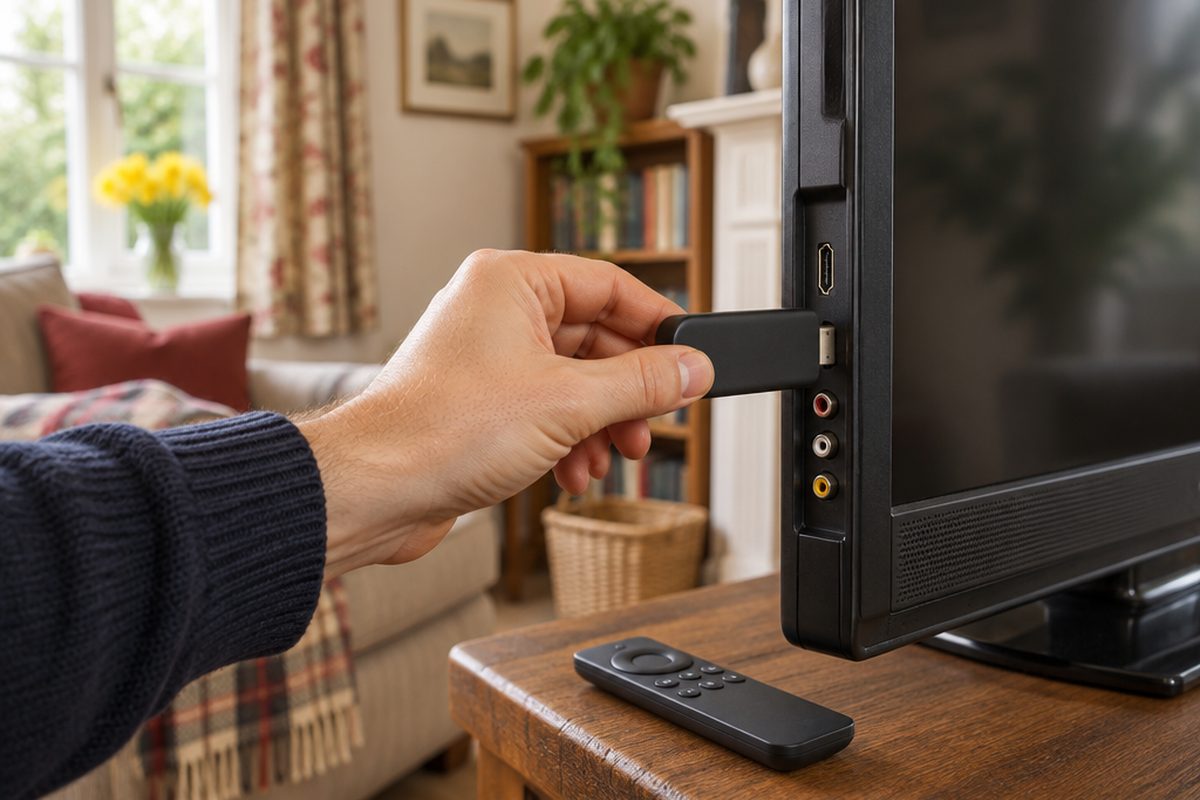
If the picture on your TV is still good, there is no reason to replace it just to get streaming apps. A streaming stick plugs into the back and gives an old set the same apps as a new one, often running faster than the software built into TVs that cost ten times as much. The only thing to check first is which sockets your TV has.
As an Amazon Associate I earn from qualifying purchases. The buttons below go to Amazon, and I may earn a commission if you buy, at no extra cost to you.
The kit you need
Streaming stick
Choose an HD stick for an HD TV or a 4K stick for a 4K TV. A 4K stick works on an HD TV too, and is worth it if you might upgrade later.
Our pick: Roku Streaming Stick HD
HDMI extender or right-angle adapteroptional
On a wall-mounted TV the stick may not fit behind the set. A short extender lets it hang clear. Some sticks include one.
Our pick: VCE HDMI Extension Cable
USB power adapteroptional
Sticks need more power than many TV USB ports provide. Use the mains plug that comes with the stick, and only buy one if yours is missing.
Our pick: Anker PowerPort mini USB Plug
HDMI to SCART or composite converteroptional
Only for very old TVs with no HDMI socket at all. Picture quality is basic, but it works.
Step by step
Look at the back of the TV
Find a socket labelled HDMI. Almost every flat-screen TV has at least one. Note which number it is, such as HDMI 2, because you will need to select it later. If there is no HDMI socket at all, you need the converter from the kit list.
Plug the stick in and power it from the wall
Push the stick into the HDMI socket, using the extender if space is tight. Connect its power lead to the mains adapter, not to the TV's USB port. Underpowered sticks restart at random and are the most common cause of problems.
Switch the TV to the right input
Press Source or Input on the TV's own remote and choose the HDMI number you plugged into. You should see the stick's welcome screen.
Connect it to your Wi-Fi
Follow the on-screen setup, choose your Wi-Fi network and enter the password. Let it download its updates before you do anything else. This can take ten minutes the first time.
Add your apps and sign in
Install the apps you use and sign in to each one. Most show a code on screen that you enter on your phone, which is much quicker than typing passwords with a remote.
Let the stick's remote control the TV
In the stick's settings, look for equipment or TV control. Most sticks can turn the TV on and off and change the volume, so you can put the old remote in a drawer.
Handy extras
Not essential, but people often pick these up at the same time.
- 4K streaming stick
- Soundbar for better TV sound
- HDMI switch for more sockets
- Universal remote control
- High speed HDMI cable
Common questions
Do I need a TV licence to use a streaming stick?
In the UK you need a TV licence to watch live TV on any service or to use BBC iPlayer. You do not need one if you only watch on-demand services such as Netflix. The stick itself makes no difference.
Will a 4K stick improve the picture on my HD TV?
No. The TV can only show the resolution it was built for. A 4K stick is simply faster and ready for a future TV.
The stick sticks out and will not fit. What now?
Use an HDMI extender. It is a short flexible lead that moves the stick away from the socket, and it can improve Wi-Fi reception too because the stick is no longer hidden behind the TV.
More guides
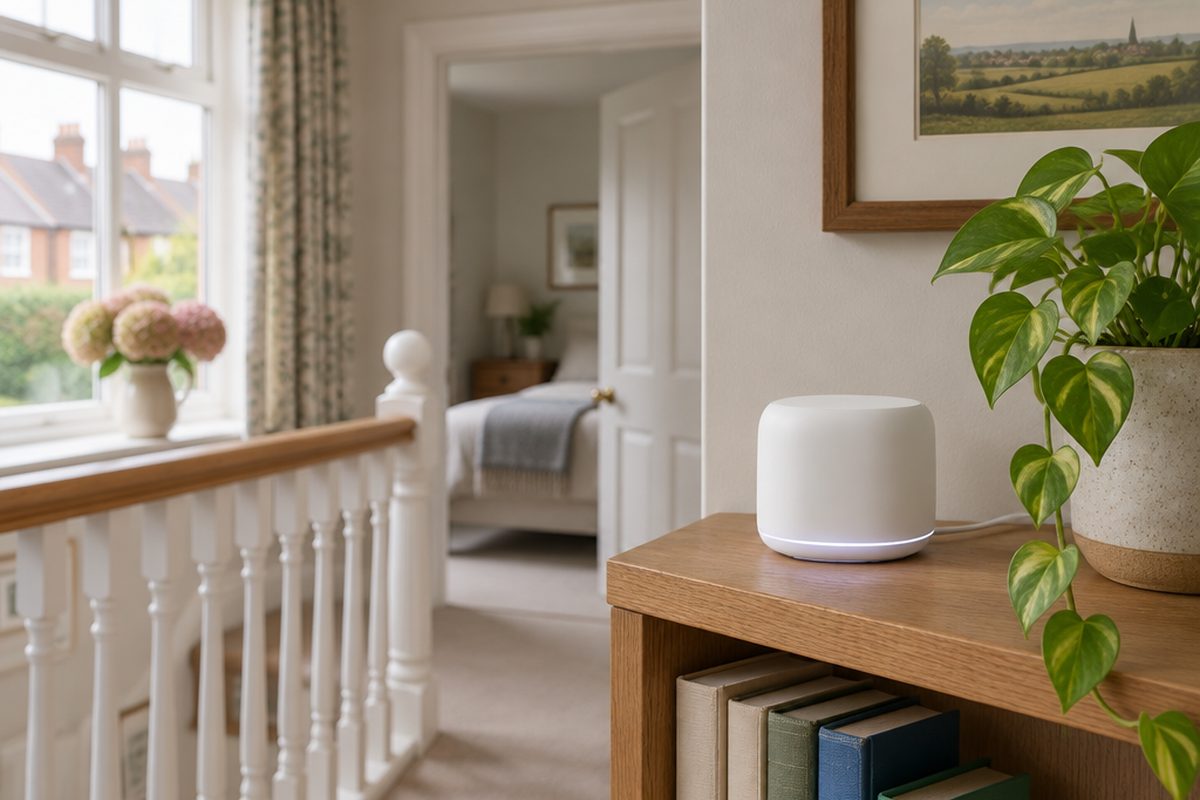 How to set up mesh Wi-Fi to fix dead spots in your home45 minutesFix weak Wi-Fi upstairs or in the back room with a mesh system. What to buy, where to put each unit and how to set it up with your existing router.
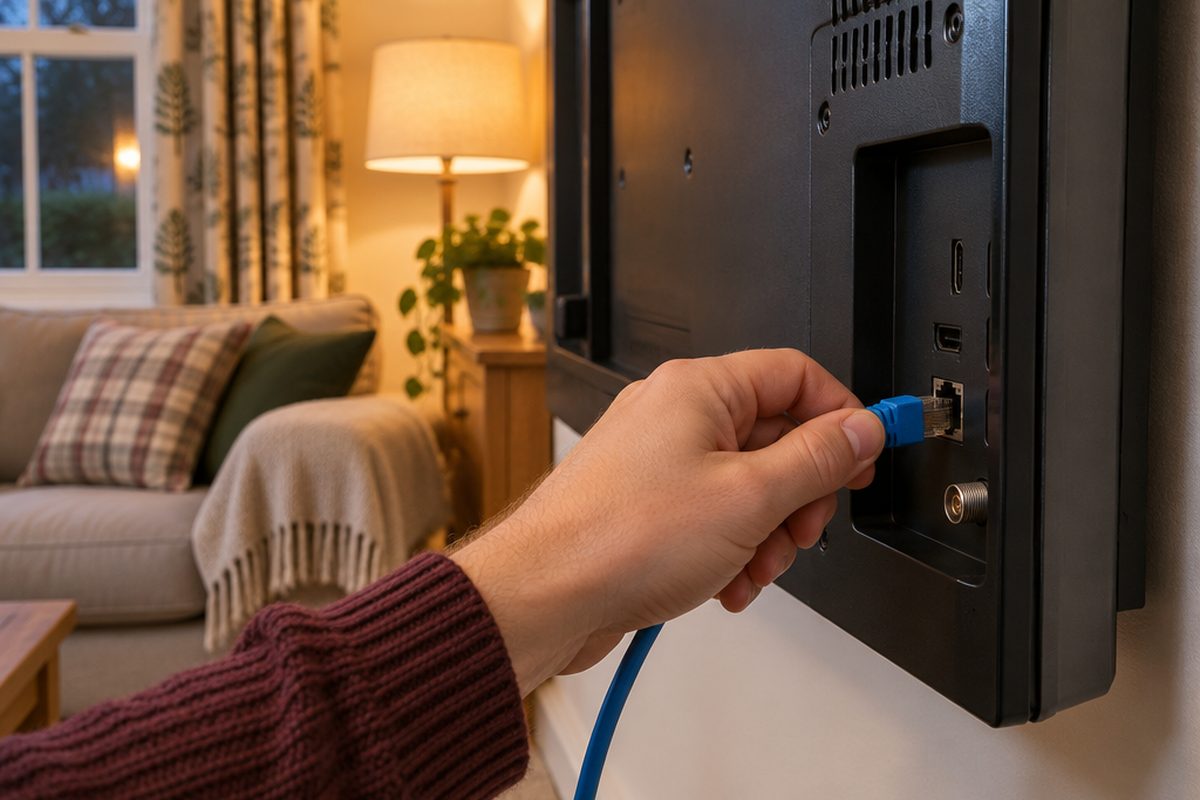 How to stop your TV buffering when you stream30 minutesFix a smart TV or streaming stick that keeps buffering. Work out whether the problem is the Wi-Fi or the TV, then fix it with a cable or a better stick.
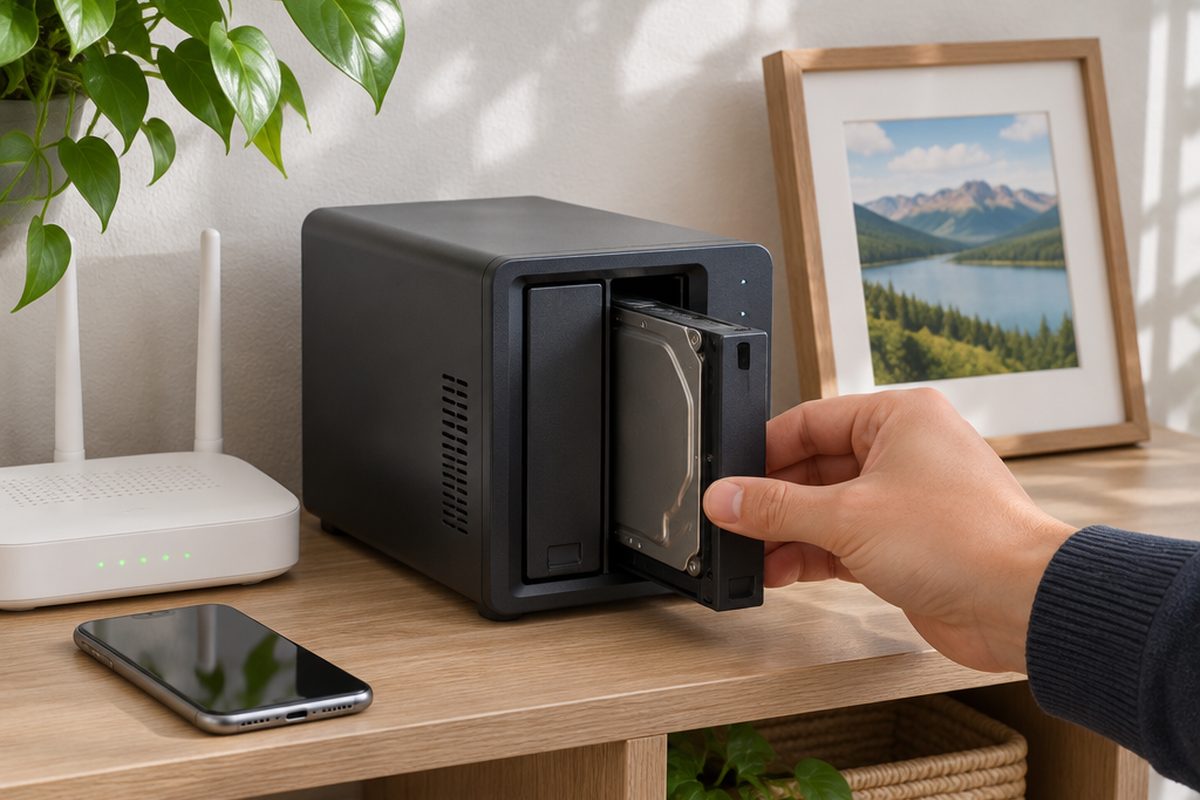 How to set up a home NAS to back up your photos automatically2 hoursSet up a two-drive NAS that backs up your phone photos and computer on its own, with a simple plan for an offsite copy.