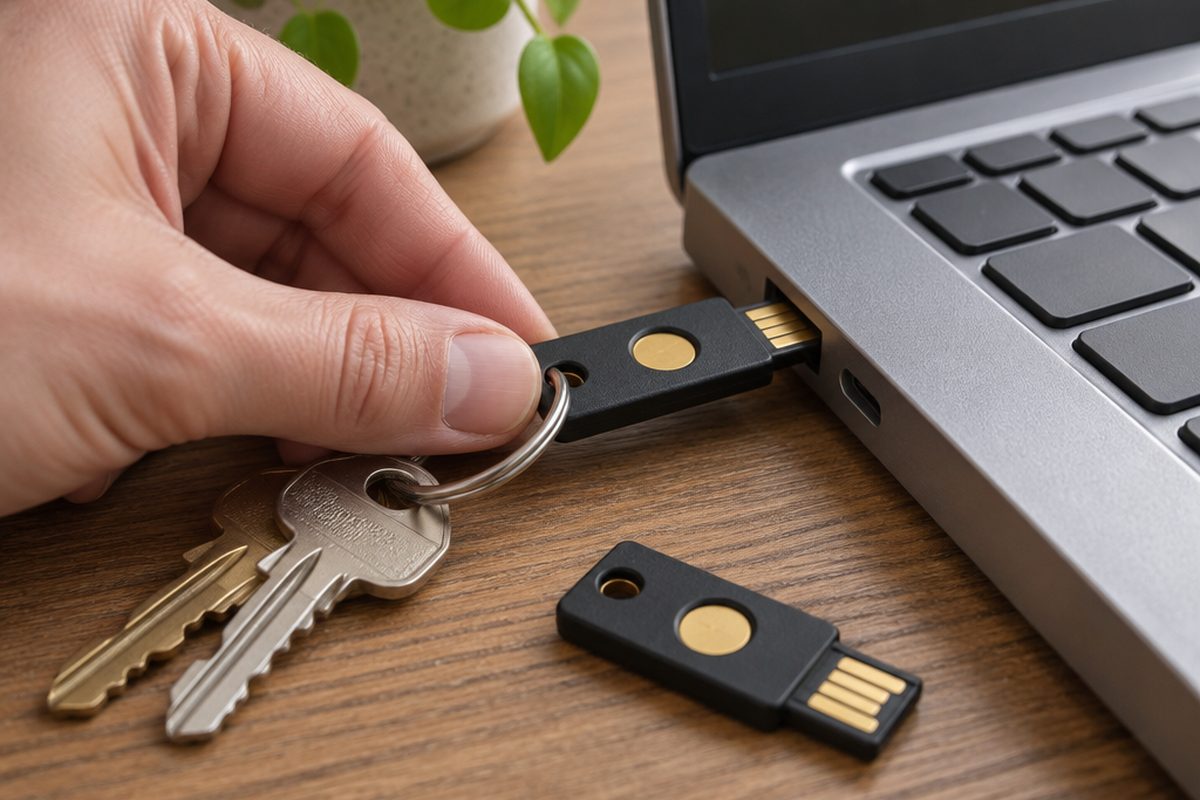
Most account break-ins start with a stolen password or a convincing fake login page. A security key is a small device, about the size of a house key, that you tap to prove it is really you. It will not respond to a fake website, which makes it one of the strongest protections an ordinary person can buy. The setup is fiddly once, and then it is quicker than typing codes from a text message.
As an Amazon Associate I earn from qualifying purchases. The buttons below go to Amazon, and I may earn a commission if you buy, at no extra cost to you.
The kit you need
Two FIDO2 security keys
Always buy two: one for your keyring and one spare kept at home. If you lose your only key, getting back into your accounts can be very hard.
Our pick: YubiKey 5C NFC
USB-A version of the keyoptional
Choose keys that match your devices. USB-C suits most newer laptops and phones. Older computers need USB-A.
Our pick: YubiKey 5 NFC
USB-C to USB-A adapteroptional
Lets one key work with both kinds of port if your devices are mixed.
Our pick: Anker USB-C to USB 3.0 Adapter
Step by step
Choose keys that fit your devices
Check the ports on your computer and phone. Keys with NFC can also be tapped against the back of most modern phones, which is the easiest way to use them on a mobile. Buy two of the same kind.
Start with your main email account
Your email is the account that can reset the passwords for everything else, so protect it first. Sign in on a computer, open the account's security settings and look for two-step verification, passkeys or security keys.
Add the first key
Choose to add a security key, plug it in when asked and touch the metal contact or button on it. Give it a name such as Keyring key so you can tell them apart later.
Add the second key straight away
Repeat the same steps with the spare key and name it Spare key. Do this before you move on. An account with only one key registered is an account you can be locked out of.
Save the backup codes
Most services offer a set of one-time backup codes. Print them or write them down and keep them with the spare key. Do not store them only on the device you are trying to protect.
Work through your other important accounts
Do the same for your password manager, any cloud storage, and social media accounts. Many UK banks use their own app or card reader instead and do not accept security keys yet, so protect the email address the bank has on file for you.
Put the spare somewhere safe
Keep the spare key at home in a drawer or with important documents, not on the same keyring as the first one.
Handy extras
Not essential, but people often pick these up at the same time.
- Security key with fingerprint reader
- Slim key for leaving in a laptop
- Fireproof document pouch
- Small home safe
- Privacy screen for your laptop
Common questions
What happens if I lose a key?
Sign in with the spare, remove the lost key from each account's security settings and add a replacement. The lost key is no use to a finder without your password as well.
Is this the same as a passkey?
They are closely related. A passkey stored on your phone or in a password manager uses the same technology. A security key keeps that passkey on a separate physical device, which some people prefer for their most important accounts.
Do I still need a password manager?
Yes. Plenty of websites do not support keys, and a password manager gives each of those a long, unique password.
More guides
 How to set up mesh Wi-Fi to fix dead spots in your home45 minutesFix weak Wi-Fi upstairs or in the back room with a mesh system. What to buy, where to put each unit and how to set it up with your existing router.
 How to stop your TV buffering when you stream30 minutesFix a smart TV or streaming stick that keeps buffering. Work out whether the problem is the Wi-Fi or the TV, then fix it with a cable or a better stick.
 How to set up a home NAS to back up your photos automatically2 hoursSet up a two-drive NAS that backs up your phone photos and computer on its own, with a simple plan for an offsite copy.